
To set up the desired email address in Gmail, follow these steps:
Step 1. Open Gmail
Go to the Gmail website and log in to your account.
Step 2. Go to settings
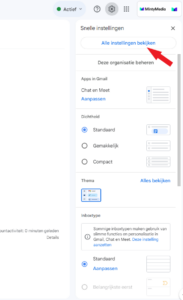
Click the cog icon in the upper right corner and select "View All Settings.
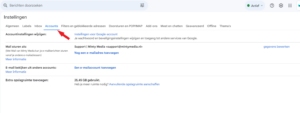
Step 3. Go to the 'Accounts and imports' tab.
Click on the "Accounts and Imports" tab at the top.
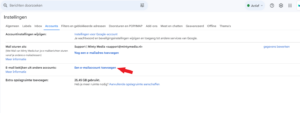
Step 4. Add another email account
Under the "Accounts and imports" section, look for "Add another e-mail account" and click "Add an e-mail account.
Step 5. Enter your email address
Enter your e-mail address(naam@domein.nl) and click "Next.

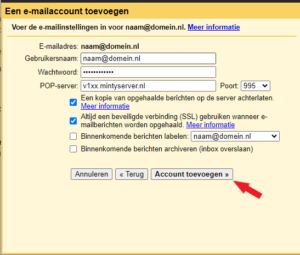
Step 6. Enter the server data
Then click on "Add Account.
Step 7. Send emails as this account
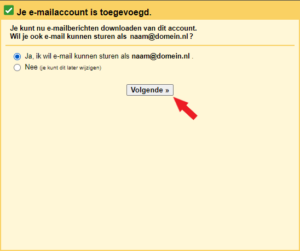
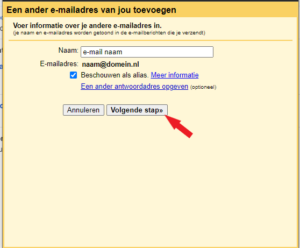
If you also want to send emails from this account select "Yes" and click "next" and then "Next Step". If you do not want this select "No" and click "next".
Step 8. Verify your email address
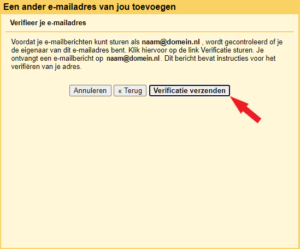
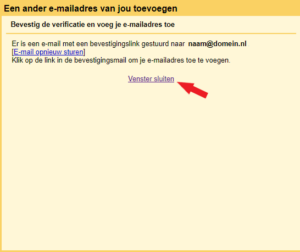
Gmail will send a verification email to your email address when you click "Send Verification" in the window that just opened. Click the link in that email to confirm that you have access to this email address. Then click "Close Window" in the Gmail window.
Once these steps are complete, Gmail should be able to import your emails from the specified account and you should also be able to send emails from that account through Gmail. If you experience any problems, check the information entered and make sure your Internet connection is active.
