
0

Manuals

Setting up email in Thunderbird

To set up the desired email address in Thunderbird, follow these steps:

Step 1. Open Thunderbird

Launch the Thunderbird e-mail program on your computer.


Step 2. Add account

Click "File" top left corner of Thunderbird and select "New" > "Existing email account."
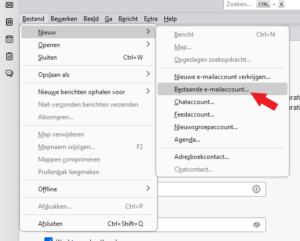
Step 3. Enter your account information
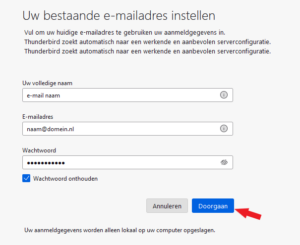
  • Your name: Enter your name as you want it to be displayed to the recipients of your emails.
  • Email address: Enter your e-mail address (naam@domein.nl).
  • Password: Enter the password for your email account.
  • Click "Continue."
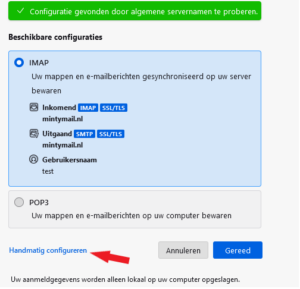
  • In new window, click on "Manually configure"

Step 4. Configure server settings

  • Choose "IMAP" as the incoming server type.
  • Incoming server: v1xx.mintyserver.co.uk
  • Port: 993
  • SSL/TLS: Select "SSL/TLS"
  • Authentication method:Auto detection
  • Username: naam@domein.nl

Step 5. Configure outgoing server (SMTP).
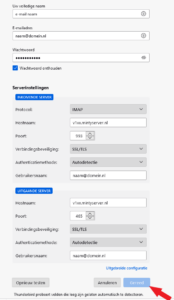
  • Outgoing server: v1xx.mintyserver.co.uk
  • Gate: 465
  • SSL/TLS: Select "SSL/TLS"
  • Authentication method:Auto detection
  • Username: naam@domein.nl

Step 6. Account name and complete

Give your account a name (for example, "MintyHosting") and click "Done." On the new screen, click "Finish."
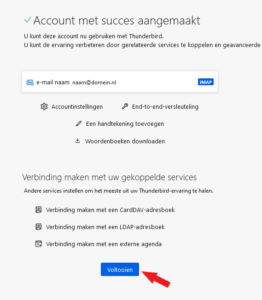
Thunderbird will attempt to connect to the specified server settings and retrieve your email. Once this is complete, you should be able to send and receive email through Thunderbird using the specified SMTP/IMAP settings. If you experience any problems, check the data entered and make sure your Internet connection is active.

Any other questions? Go back to the complete FAQ overview.

To watch along on your computer, we need AnyDesk. Install the software to get faster assistance.