
Step 1. Launch the Thunderbird app
Open the Thunderbird app on your Android device. If you haven't installed the app yet, you can download it from the Google Play Store.
Step 2. Click on 'New email account'
Once the app is open, you will be given the option to add a new email account. Click "New email account" to continue.
Step 3. Enter your account information
You will be asked to enter your e-mail information. Please enter the following information:
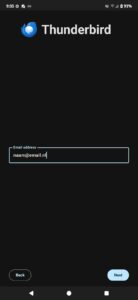
After that, click "Continue. A new window will then appear. Click 'Manually configure' here to set up the server settings yourself.
Step 4. Enter the server settings
To ensure that your emails are sent and received correctly, you must enter the correct server settings.
Incoming server (IMAP)
Outgoing server (SMTP)
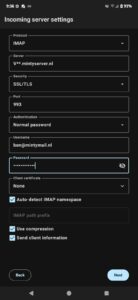
Step 5. Click "Done.
Check that all the settings are filled in correctly and then click 'Done'. Thunderbird will now attempt to connect to the email server.
