
Step 1: Open Microsoft Entra admin center: https://entra.microsoft.com/.
Step 2: Click on "Applications" -> "App registrations."
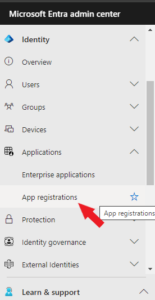
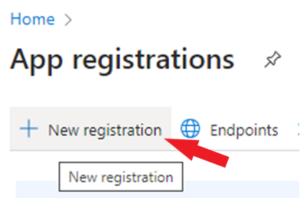
Step 3: Click on "New registration."
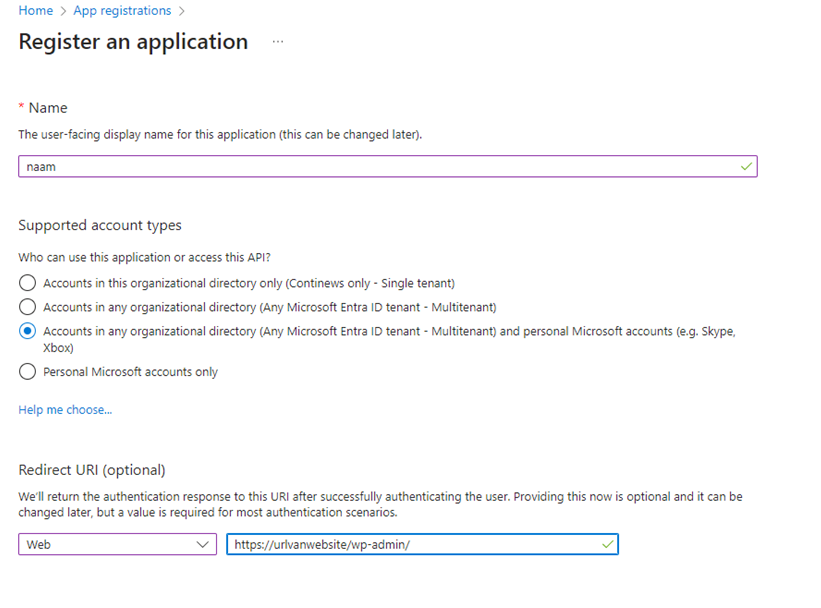
Step 4: Give the app an appropriate name and enter the data using the picture and click "Registar".
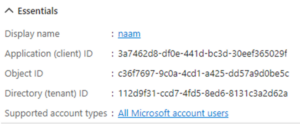
Step 5: Save the "Application (client) ID," we will need this later.
Step 6: Go to "API permissions" and click "Add a permission" -> "Microsoft Graph" -> "Deligated permissions" here.
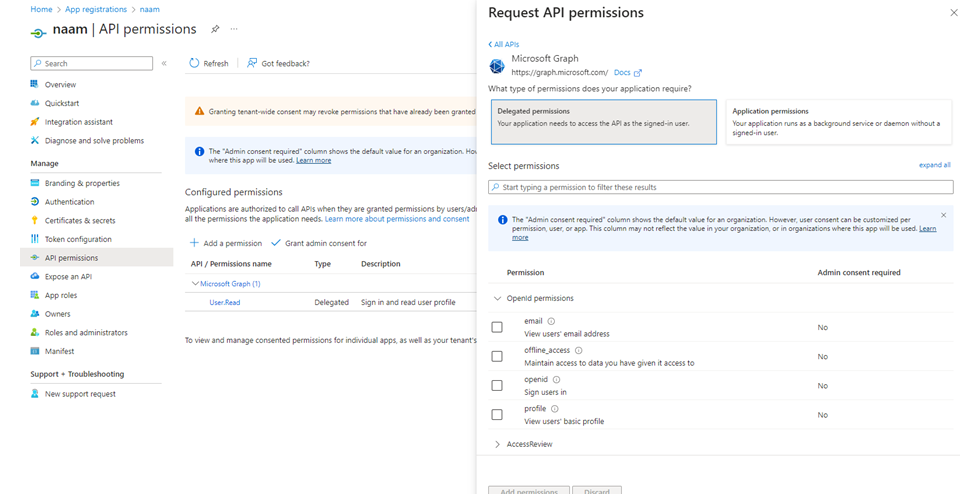
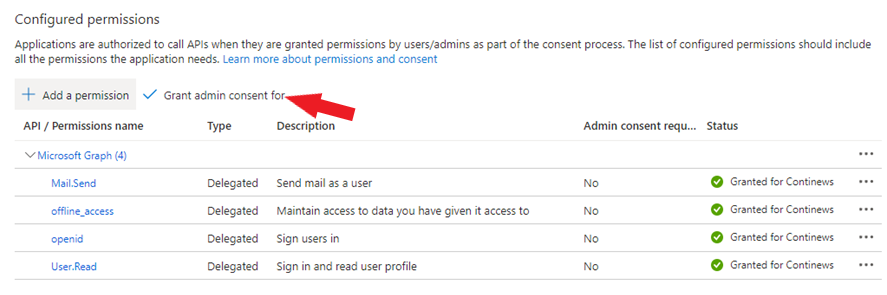
Step 7: Add the permissions "Mail.Send", "offline_access" and "openid" by clicking the check mark in front of the permission and then "Add permissions". Click on "Grant admin consent for TenantName."
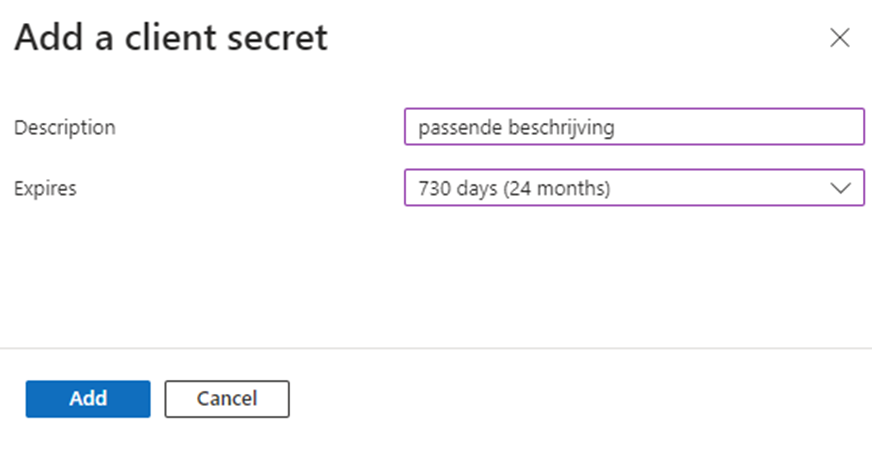
Step 8: Click on "Certificates & secrets" -> "New client secret" give an appropriate description here and at the "Expires" tab select 24 months. Finally, click on "Add."
Step 9: Save the code under "Value," which will be needed later.

Step 10: Install the Minty Support plugin by clicking this link.
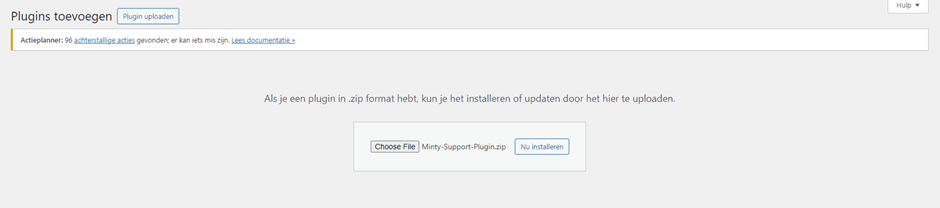
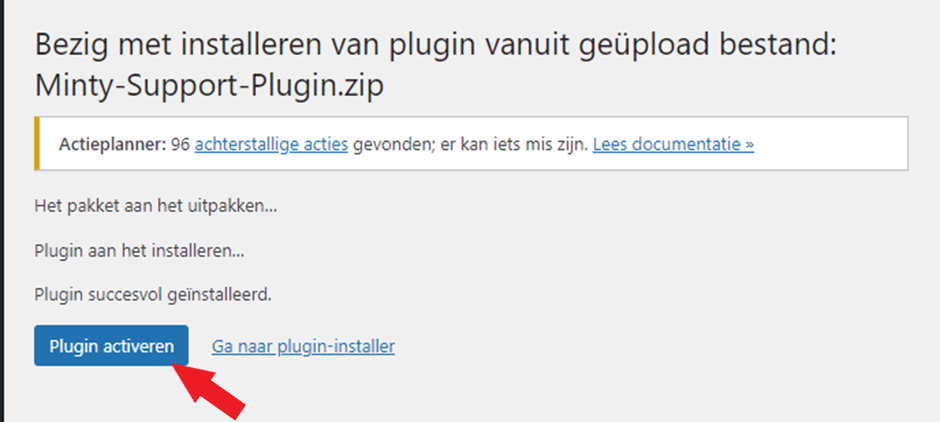
Step 11: Install the Minty Support plugin on your WordPress website. Login to your WordPress website and navigate to "Plugins" -> "Add New Plugin" -> "Upload Plugin" and drag it the just installed plugin in the "Choose File" window click on "Activate Plugin" in the new window.
Step 12: Click on the Minty Support plugin at the bottom of the left menu bar of your screen. Navigate to "SMTP Mail" check "SMTP Mail" here and select "Microsoft". Enter in the new window under the entry field "Application ID" the previously saved "Application (client) ID". In the "Application secret" entry field, enter the previously saved "Secret Value". In the "Redirect URI" entry field, enter the previously saved "Redirect URI". Finally, click on "Save".
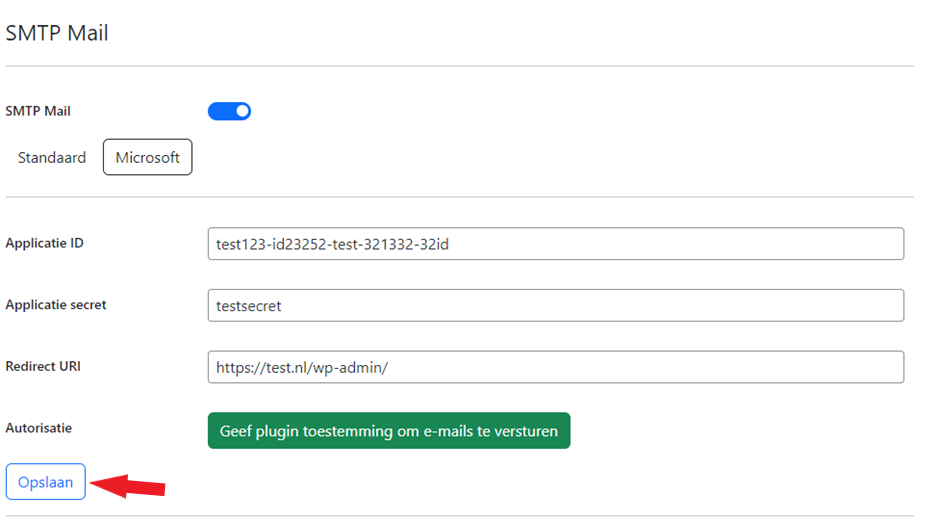
Step 13: Link a licensed Microsoft mailbox to the Minty Support plugin by clicking "Allow plugin to send emails" and then logging in.
If everything is set up correctly, you can now send emails from your WordPress website. If you encounter any problems, check the data entered.
