
To set up the desired email address in Outlook, follow these steps:
Step 1. Open Outlook
Start Microsoft Outlook on your computer.
Step 2. Go to Account settings
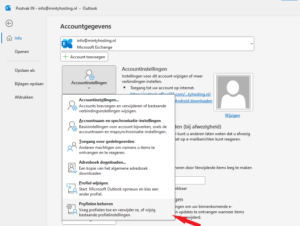
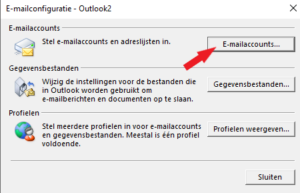
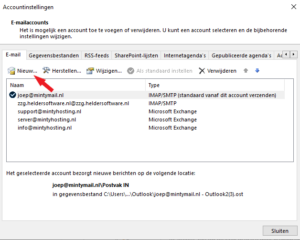
Click "File" on the menu bar and select "Manage Profiles" under the "Account Settings" tab then click "E-mail Accounts" and then "New."
Step 3. Add a new account
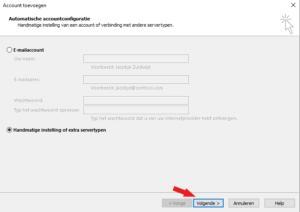
Select "Add manual settings or additional server types." Click "Next."
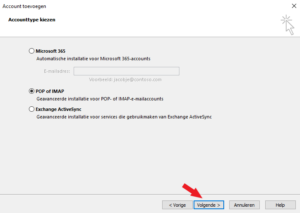
Step 4. Choose the service type
Choose "IMAP" and click "Next."
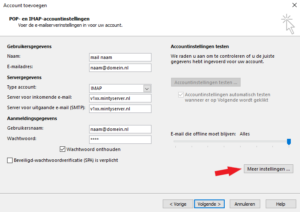
Step 5. Fill in the user and server information
Then click on "More Settings."
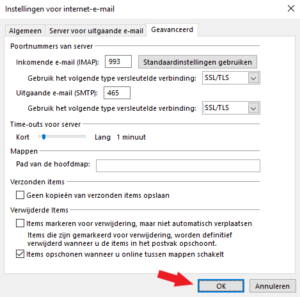
Step 6. Configure the server settings
Step 7. Complete the configuration
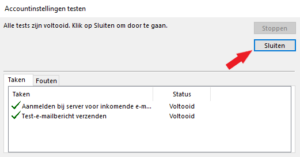
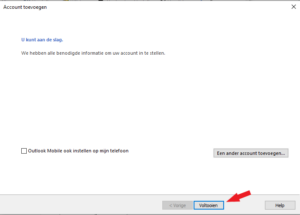
If all settings are correct, click "Next." Your account information will be tested before your account is added. Click "Close" when testing is complete. Finally, click "Finish" to finish configuring your email account in Outlook.
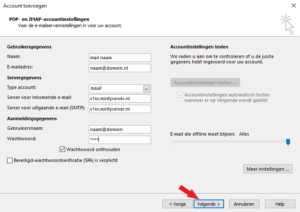
You should now be able to send and receive emails through Outlook using the specified SMTP/IMAP settings. If you experience any problems, check the data entered and make sure your Internet connection is active.
