
To set up the desired email address on an Apple IOS device, iPhone or iPad, follow these steps:
Step 1. Open the Settings app.
Find the cog icon (Settings) on your home screen and tap it to open the app.
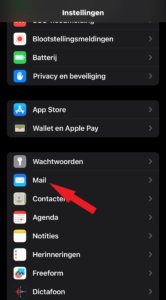
Step 2. Scroll down and select "Mail.
In the settings list, scroll down until you see "Mail. Tap it to open mail settings.
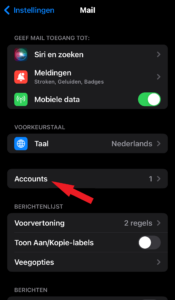
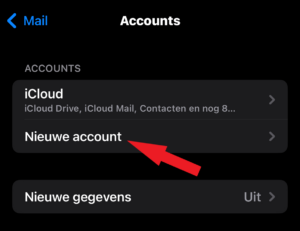
Step 3. Tap "Add accounts.
If you already have e-mail accounts set up, you'll see a list of accounts. Tap "Add Accounts" to add a new one.
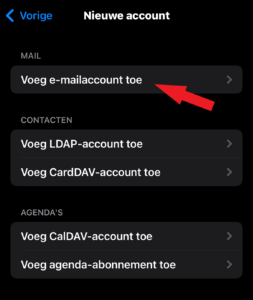
Step 4. Choose the type of account
You will be asked to choose the account type. Choose "Other" because you want to add an SMTP/IMAP account.
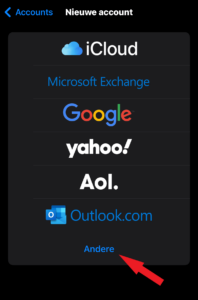
Step 5. Voeg account details
Enter your name, email address, password and a description of the account. Then tap "Next.
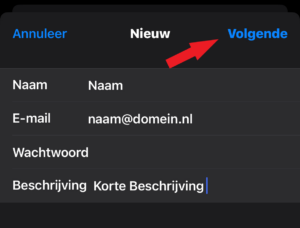
Step 6. Choose "IMAP.
Choose "IMAP" as the account type. This is the most commonly used protocol for synchronizing e-mail between your device and the e-mail server.
Step 7. Fill in the incoming mail server details
Enter the incoming mail server details with the correct hostname and username:
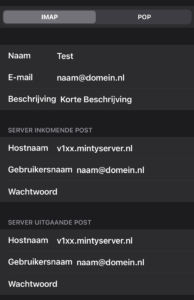
Step 8. Enter the outgoing mail server details
Enter the outgoing mail server details with the correct hostname and username:
Step 9. Check the settings
Make sure all data entered is correct. You can also review and adjust the advanced settings as needed.
Step 10. Save the settings
Tap "Save" to save the settings. Your iPhone will try to connect to the email server and sync your inbox.
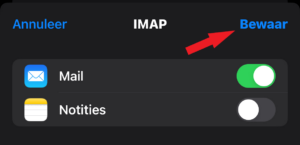
If everything is set up correctly, you should now be able to receive and send your email from your Apple device. If you encounter problems, check the information you entered and make sure you are connected to the Internet.
